May 09, 2025

How to create a custom table in Microsoft Power apps

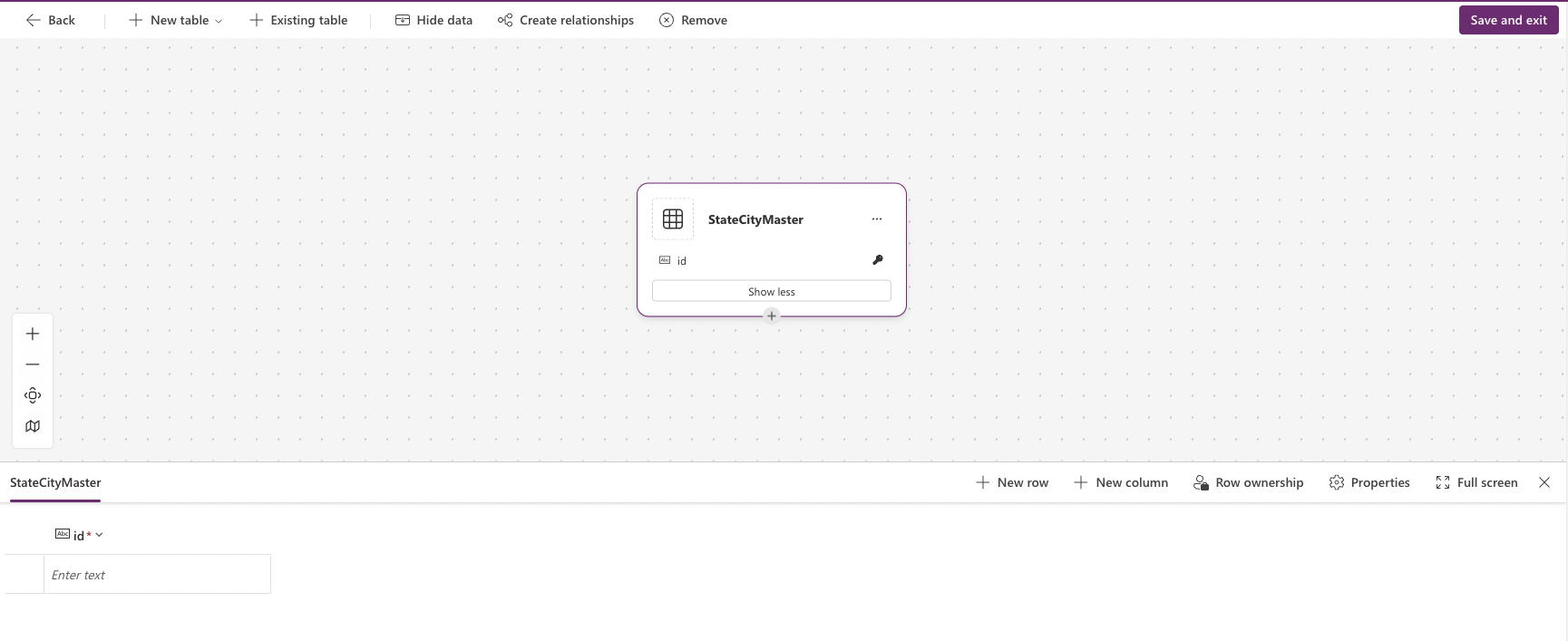
 Below are the steps to create custom tables in Power Apps


Step 1: Create a new table

  1. Open PowerApps and navigate to the "Table" menu in left panel.
  2. Click on the "Start with a black table" button.
create custom table

3. Enter a name for your table and click "Create".
Add Table Name


Step 2: Define the table structure

  1. In the "Table" tab, click on the "Add column" button.
    add or edit column

  2. Enter the name and data type for each column (e.g. text, number, date, etc.).
  3. Repeat this process for each column you want to add.

Step 3: Add data to the table

  1. Click on the "Table" menu in Left Panel.
  2. Click on the "table name" from the list.
  3. It will show the table properties along with data. 
    add data into table
Step 4 Save and publish the table
  1. Click on the "Save" button to save your table.
  2. Click on the "Publish" button to publish your table to the PowerApps platform.


August 26, 2022

Mutiple ways to programmatically navigate using React router

 Mutliple ways to navigate between pages in react using react router. 

  • React Router v6
            useNavigate hook can be used.
 
  import { useNavigate } from "react-router-dom"
  const Component = () => {
      let navigate = useNavigate();
      navigate("/pathname", state: { someData }); 
  }

  • React Router v5
            useHistory hook can be used.
 
  import { useHistory } from "react-router-dom"
  const Component = () => {
      let history = useHistory();
      history.push("/pathname"); 
  }


June 24, 2021

React JS Interview Questions and topics

 To evaluate a candidate, recruiters generally asks certain questions so that they can know how much the candidate has hands-on experience and how much is his/her technical capabilities. Below are some of the questions:

  • What is Virtual DOM?
  • Explain how React Routing works?
  • What are the ways to debug React JS application?
  • What are the libraries needed for unit testing. Write a sample unit test.
  • How to configure application so that whenever an user commits code, it first checks the code alignments and other lint issues and fix them automatically.
  • How to configure application so that whenever user pushes code to source control, it first run all unit test cases and on success only it pushes the code to the repo
  • What is Responsize web design?
  • How does Exception Handling works,
  • What type of configuration needed to deploy an react application on mulitple environments.
  • How to maintain configuration data like API URLs, API Keys etc based on different environments in application.
  • Difference between const and let. Write an example.
  • Difference between == and ===, write an example.
  • what is use of pre commit and post commit in package.json?
  • Difference between ES6 functions like filter and find.
  • How to configure redux in the application.
  • How to access lifecycle methods in functional components.
  • Which lifecycle methods we can access using useEffect hook.
  • How and where we can use Spread Operator?
  • What is the use of JWT token and how does it works.

June 18, 2021

How to query like joins on 2 collections in mongodb using aggregate keyword

To query like JOINS between 2 collections in mongodb, we need to use $aggregate.

Lets see the example:
 
I have 2 collections, one is Employee and another one is Department.
 Employee Collection  
           {    
             "_id" : 1,    
             "name" : {    
                "first" : "Abhi",    
                "last" : "Dev"    
             },    
             "departmentId" : 2
            },    
            {    
             "_id" : 2,    
             "name" : {    
                "first" : "Abc",    
                "last" : "Agrawal"    
             },    
              "departmentId" : 1 
            },    
            {    
             "_id" : 3,    
             "name" : {    
                "first" : "Dhruv",    
                "last" : "Agrawal"    
             },    
             "departmentId" : 1,    
            }  
           }   

Department Collection  
           {    
             "_id" : 1,    
             "name" : "finance" 
            },    
            {    
             "_id" : 2,    
             "name" : "hr" 
            }
           } 

Now I need to fetch employee details for id 2 along with employee's department name. 

The query would be:

db.employee
    .aggregate([
      { $match: { _id: 2 } },
      {
        $lookup: {
          localField: 'departmentId',
          from: 'department',
          foreignField: '_id',
          as: 'departmentName',
        },
      },
      { $unwind: '$departmentName' }
]).toArray()

The output would be:

	{    
         "_id" : 2,    
         "name" : {    
         	"first" : "Abc",    
         	"last" : "Agrawal"    
         },
         "departmentName": {
            "name": "finance"
         }

Hope it helps.

October 30, 2019

How to mock third party libraries and functions in jest using react js


Jest is a library we use for testing JS code whether it's an Angular application or React JS.

Many times we encounter issues while testing code which has third party libraries like mixpanel, moment, redux etc.

To resolve, we need to mock these 3rd party libraries and their respective functions. We need to intercept these libraries by mocking as given below:

1) Create a directory at root as "__mocks__".
2) Let say we need to create mock for moment library. Create a JS file under __mocks__ as moment.js. Keep in mind to have the file name exactly same as declared when importing in source code.
3) Open moment.js file and write below code snippet

const moment = {
  anyFunc: jest.fn()
}
export default moment;

4) Now execute your jest test cases. It will not throw error for moment library.
5) Use can add any mock functions in that file and add expected response and test them.

Hope this helps!

July 23, 2019

How to add a checkbox in primereact datatable

Code snippet to add a checkbox in each row of a primereact datatable.

import React, { Component } from 'react';
import {DataTable} from 'primereact/datatable';
import {Column} from 'primereact/column';

export class DTColumnCheckBoxDemo extends Component {

    constructor() {
        super();
        this.state = {
        }
    }
    render() {
       return (
         <DataTable value={this.state.list}}
            selection={this.state.listItem} onSelectionChange={(e) => this.setState({listItem: e.data})} >
            <Column em="" selectionmode="multiple" />
            <Column field="xyz" header="XYZ" />
            <Column field="abc" header="ABC" />
         </DataTable>
    );
}

In Column tag we need to add selectionmode  attribute to add checkbox in datatable.

July 05, 2019

How to host React JS code with Spring Boot Application

Sometimes we got a requirement where we need to configure react application so that it can be serve in Spring Boot Application. Means, both Spring boot application and react js code can be served from same server.

Following are the steps we need to follow to make it happen:
  1. Put all of your html, js, css, etc. files to src/main/resources/static. Under resources folder create a static folder and under it paste all your frontend code. 
  2. Add one ResourceResolver Class to Spring as below:

    
    @Configuration
    public class Config implements WebMvcConfigurerAdapter {
    
        @Override
        public void addResourceHandlers(ResourceHandlerRegistry registry) {
            ResourceResolver resolver = new ReactResourceResolver();
            registry.addResourceHandler("/**")
                    .resourceChain(true)
                    .addResolver(resolver);
        }
    
        public class ReactResourceResolver implements ResourceResolver {
            // root dir of react files
            private static final String REACT_DIR = "/static/";
            private static final String REACT_STATIC_DIR = "static";
            private Resource index = new ClassPathResource(REACT_DIR + "index.html");
            private List rootStaticFiles = Arrays.asList("favicon.io",
                    "asset-manifest.json", "manifest.json", "service-worker.js");
    
            @Override
            public Resource resolveResource(
                HttpServletRequest request, String requestPath,
                List locations, ResourceResolverChain chain) {
                return resolve(requestPath, locations);
            }
    
            @Override
            public String resolveUrlPath(
                String resourcePath, List locations,
                ResourceResolverChain chain) {
                Resource resolvedResource = resolve(resourcePath, locations);
                if (resolvedResource == null) {
                    return null;
                }
                try {
                    return resolvedResource.getURL().toString();
                } catch (IOException e) {
                    return resolvedResource.getFilename();
                }
            }
    
            private Resource resolve(
                String requestPath, List locations) {
    
                if (requestPath == null) return null;
    
                if (rootStaticFiles.contains(requestPath)
                        || requestPath.startsWith(REACT_STATIC_DIR)) {
                    return new ClassPathResource(REACT_DIR + requestPath);
                } else
                    return index;
            }
    
        }
    }
    
    
Its done. Application frontend will run as smooth.

April 22, 2019

How to read and get value from Info.plist file using react native in IOS app

Info.plist file is a very important file which handles all the configuration for an app. We can use this file to have some custom information specific to app which can be read when app is getting loaded.

To read the file we need to make a bridge component that allow us to get values from the plist file. Because app cannot directly read the file until the app is developed in native language.

Info.plist is having data in JSON format, which can be read as key, value pair.

First, we need to create a custom class (Objective-C) that will read info.plist file and send the response back to app.


#import "AppConfig.h"
@interface AppConfig()
@end

@implementation AppConfig
RCT_EXPORT_MODULE();

RCT_EXPORT_METHOD(getPListValue:(NSString *)param callback:(RCTResponseSenderBlock)callback)
{
  NSString* paramValue = [[[NSBundle mainBundle] infoDictionary] valueForKey:param];
  if(paramValue == nil)
    paramValue = @"";
  callback(@[[NSNull null], paramValue]);
}
@end


Using NativeModules we can call this function and get the value of any keys in react native. Import NativeModules from react-native and directly call the method as below:


import { NativeModules } from 'react-native';
NativeModules.AppConfig.getPListValue("keyName", (error, keyValue) => {
  console.log(keyValue);
});

On running above code, it will log the key value for the specific key you have given in code as keyName.

How to add action button in notifications of an ios app using react native


In this tutorial, we will learn how to add an action button on local notifications triggered by application using React Native.

To achieve this, we need to create a bridge component that will enable communication between react-native and IOS. Below code is in Objective-C.

We call the IOS function from react native and this objective C method will create buttons and append to notifications that come on device.

Below are the steps:

1) Create a custom ActionNotification.m file and add below code snippet into that:


#import "ActionNotification.h"
@interface ActionNotification()
@end

@implementation ActionNotification
RCT_EXPORT_MODULE();
RCT_EXPORT_METHOD(createUserNotificationSettings:(RCTResponseSenderBlock)callback)
{
  UIMutableUserNotificationAction *action1 = [[UIMutableUserNotificationAction alloc] init];
  [action1 setActivationMode: UIUserNotificationActivationModeForeground];
  [action1 setTitle:@"Title1"];
  [action1 setIdentifier:@"first_button"];
  [action1 setDestructive:YES];
  [action1 setAuthenticationRequired:NO];
  
  UIMutableUserNotificationAction *action2 = [[UIMutableUserNotificationAction alloc] init];
  [action2 setActivationMode: UIUserNotificationActivationModeForeground];
  [action2 setTitle:@"Title2"];
  [action2 setIdentifier:@"second_button"];
  [action2 setDestructive:NO];
  [action2 setAuthenticationRequired:NO];
  
  UIMutableUserNotificationCategory *actionCategory = [[UIMutableUserNotificationCategory alloc] init];
  [actionCategory setIdentifier:@"actionCategory"];
  [actionCategory setActions:@[action1, action2]
                  forContext:UIUserNotificationActionContextDefault];
  
  NSSet *categories = [NSSet setWithObject:actionCategory];
  UIUserNotificationType types = (UIUserNotificationTypeAlert|
                                  UIUserNotificationTypeSound|
                                  UIUserNotificationTypeBadge);
  
   [[UIApplication sharedApplication] registerUserNotificationSettings:[UIUserNotificationSettings settingsForTypes:types categories:categories]];
  callback(@[[NSNull null], @"done"]);
}
@end

In above implementation, we have created one method createUserNotificationSettings, which will add action buttons to notification. Now, this function need to be called just before scheduling the notification. Also, we need to make sure that identifier has been properly set. In above case, it must be "actionCategory".

2) Add Action Button Click Event function in AppDelegate.m file.


- (void)application:(UIApplication *)application handleActionWithIdentifier:(nullable NSString *)identifier forLocalNotification:(nonnull UILocalNotification *)notification withResponseInfo:(nonnull NSDictionary *)responseInfo completionHandler:(nonnull void (^)())completionHandler
{
  if ([identifier isEqualToString: @"first_button"]) {
    NSLog(@"First notification button was pressed");
  } else {
    NSLog(@"Second notification button was pressed");
  }
}
- (void)application:(UIApplication *)application handleActionWithIdentifier:(NSString *)identifier forRemoteNotification:(NSDictionary *)userInfo withResponseInfo:(NSDictionary *)responseInfo completionHandler:(void (^)())completionHandler
{
  if ([identifier isEqualToString: @"first_button"]) {
    NSLog(@"First notification button was pressed");
  } else {
    NSLog(@"Second notification button was pressed");
  }
}


The above functions will handle action button events.

3) Now, create JS file that will call IOS function just before scheduling Notifications.


import { PushNotificationIOS, NativeModules } from 'react-native';

 NativeModules.ActionNotification.createUserNotificationSettings((error, status) => {
    return status;
 });

 PushNotificationIOS.scheduleLocalNotification({
    fireDate: new Date(),
    alertBody: "hello",
    category: "actionCategory" // category must match to what we have defined in create notification method in Objective-C
});


Thats it!
It should display the action button when any notification comes for that particular app.

April 19, 2019

How to get product key of windows OS installed on machine


Steps to get the product key of windows OS installed on the laptop, desktop or any other device.

1) Press on Start Menu or Windows Key + X.
2) Open command prompt in Admin mode.
3) Enter below command:

wmic path SoftwareLicensingService get OA3xOriginalProductKey


April 25, 2018

How to update password in GIT using command line

As we know, using GIT through command line is one of the best way to handle repos. However, sometimes we faces issues when we update GIT password and command line does not take the updated password automatically.

To fix this issue, we can use the below commands:

For windows:

git config --global credential.helper wincred

For Mac
git config --global credential.helper osckeychain

Once execute above commands, run command that you want to execute, it will prompt for username and password again.

Hope it helps, let me know in case it does not work.

March 25, 2018

How to config gulp to run unit test cases using Istanbul with code coverage

Add below configuration in gulpfile.js for running Istanbul with mocha unit test cases through gulp.


const gulp = require('gulp');
const istanbul = require('gulp-istanbul');
const mocha = require('gulp-mocha');

gulp.task('test', () => {    
 gulp.src(['src/**/*.js'])
    .pipe(istanbul())
    .pipe(istanbul.hookRequire())
    .on('finish', () => {
      gulp.src(['test/unit/**/*.spec.js'])
        .pipe(mocha())
        .pipe(istanbul.writeReports({
          dir: './test/unit-test-coverage',
          reporters: ['lcov', 'clover', 'text', 'text-summary'],
          reportOpts: {
            dir: './test/unit-test-coverage',
          },
        }));        
    });
 });


For code coverage, we can use istanbul.writeReports method as shown above.

Once executing the command gulp test, it will execute all the test cases along with coverage report generated at given location.

Running Jest using Gulp with code coverage

Jest is a unit test framework that is mainly used for reactjs. Jest is widely used by facebook in their projects.

Add below configuration in gulpfile.js for running Jest unit test cases through gulp


  const gulp = require('gulp');
  const jestcli = require('jest-cli');

  gulp.task('test', () => {  
   jestcli.runCLI({ config: { rootDir: 'test/unit/' } }, '.', (done) => {
    done();
   });
  });

Using command: gulp test, will execute the test cases written under directory 'test/unit'. To have code coverage, we can configure it in package.json file as below:

  "jest": {
    "collectCoverage": true,
    "coverageDirectory": "./test/unit-test-coverage"
  }

Add above config in package.json file. for defining custom directory to create the report, mention the directory in coverageDirectory key, otherwise it will generate at root directory.

January 27, 2017

How to check if database exists while connecting in HSQLDB

In HSQLDB, if while providing connection string if the database does not exists, it creates a new database. However, lets say if we want to restrict HSQLDB to create new Database and only connect to exists one and if not present then throw back an exception, we can specify a connection property ifexists=true. This will allow only to connect to an existing database and avoid creating new one. Also, if db does not exists it will throw an exception.

 Connection c = DriverManager.getConnection( "jdbc:hsqldb:file:testdb;ifexists=true", "SA", "");  

January 25, 2017

How to compare two fields value while querying in mongodb

To compare 2 fields of a document while querying in mongodb, we need to use $where.

Lets see the example to compare 2 fields of a document:

 Employee Collection  
           {    
             "_id" : 1,    
             "name" : {    
                "first" : "Abhi",    
                "last" : "Dev"    
             },    
             "department" : "finance",    
             "joineddate" : "2010-04-10"     
            },    
            {    
             "_id" : 2,    
             "name" : {    
                "first" : "Agrawal",    
                "last" : "Agrawal"    
             },     
             "joineddate" : "2006-07-07"     
            },    
            {    
             "_id" : 3,    
             "name" : {    
                "first" : "Dhruv",    
                "last" : "Agrawal"    
             },    
             "department" : "finance",    
             "joineddate" : "2010-09-07"     
            }  
           }   

Now lets say I need to fetch data which has first and last values are equal.

The query would be:
 db.employee.find({ $where : "this.name.last == this.name.first" })  

The output would be:
{    
             "_id" : 2,    
             "name" : {    
                "first" : "Agrawal",    
                "last" : "Agrawal"    
             }

January 18, 2017

How to update specific records of array field in collection using MongoDB

To update specific records of an array field in MongoDB, we can achieve that by using JavaScript with Mongo query. Below are the two ways to update the arrays. Lets see both ways to update the data.

Employee Collection:
 {  
           "_id" : 1,    
        "name" : {    
           "first" : "Abhi",    
           "last" : "Dev"    
        },    
        "profile":[ {"department" : "finance", "joineddate" : "2010-04-10"},  
                          {"department" : "marketing", "joineddate" : "2008-05-05"},  
                          {"department" : "hr", "joineddate" : "2006-08-05"}  
                          ]  
      },    
      {    
        "_id" : 2,    
        "name" : {    
           "first" : "Dhruv",    
           "last" : "Sharma"    
        },    
        "profile":[ {"department" : "retail", "joineddate" : "2013-07-10"},  
                          {"department" : "finance", "joineddate" : "2010-05-25"},  
                          {"department" : "hr", "joineddate" : "2007-08-05"}  
                          ]    
      }  

Objective is to update above array's joineddate field where department is finance.
Option 1: Updating the array using JavaScript:
 db.employee.find({}).  
      forEach(function(doc){  
           doc.profile.forEach(function(d){  
                if(d.department == "finance")  
                {       
                     d.joineddate = "2016-12-12"  
                }  
           });            
           db.employee.save(doc);  
      })   

Option 2: Updating array using Mongo Query operators update and set:
 var query = {  
   profile: {  
     $elemMatch: {  
       department: "finance",  
       joineddate: {$ne: "2016-12-12"}  
     }  
   }  
 };  
 while (db.employee.find(query).count() > 0) {  
   db.employee.update(  
     query,  
     { $set: { "profile.$.joineddate": "2016-12-12" } },  
     { multi: true }  
   );  
 }  

January 17, 2017

How to update field using data from same document's another field

We cannot directly use update method to update the field with same document's another field. We need to first iterate the data and then use save method to update the same.

For example:
Employee Collection

 {    
     "_id" : 1,               
     "name" : {   
          "full_name" : "AD",  
          "first" : "Abhi",    
           "last" : "Dev"    
      },    
      "department" : "finance",    
     "joineddate" : "2010-04-10"     
 }  
   

Lets say I have above collection document that I need to update. Full name of this document should be updated with First and Last field.
 db.employee.find().snapshot().forEach(  
  function (e) {  
   // update document, using its own properties  
   e.name.full_name = e.name.first + " " +e.name.last;  
   // save the updated document  
   db.employee.save(e);  
  }  
 )       

As you can see here, we are using snapshot query modifier. The $snapshot operator prevents the cursor from returning a document more than once because an intervening write operation results in a move of the document.

How to connect MongoDB with authentication in JAVA

To connect MongoDB through JAVA, we will use MongoClient and to fetch and iterate data we will use MongoCollection and FindIterable classes.

As of version 3.2, mongoclient.getDB method is deprecated. The deprecation of this method effectively deprecates the DB, DBCollection, and DBCursor classes, among others. That's the reason we will use the new methods and classes like MongoCollection, MongoDatabase and FindIterable correspondingly.

Full example of MongoDB connection in JAVA

Employee Collection
 {    
             "_id" : 1,    
             "name" : {    
                "first" : "Abhi",    
                "last" : "Dev"    
             },    
             "department" : "finance",    
             "joineddate" : "2010-04-10"     
            },    
            {    
             "_id" : 2,    
             "name" : {    
                "first" : "Alok",    
                "last" : "Agrawal"    
             },     
             "joineddate" : "2006-07-07"     
            },    
            {    
             "_id" : 3,    
             "name" : {    
                "first" : "Dhruv",    
                "last" : "Sharma"    
             },    
             "department" : "finance",    
             "joineddate" : "2010-09-07"     
            }  
           }   
JAVA code for Mongo Connection and fetching the data.

 
import org.bson.Document;

import com.mongodb.MongoClient;
import com.mongodb.MongoClientURI;
import com.mongodb.client.FindIterable;
import com.mongodb.client.MongoCollection;
import com.mongodb.client.MongoDatabase;

public class Test {

 public static void main(String[] args) {
String mongoClientURI = "mongodb://username:password@hostname:port/dbname";  
           MongoClient mongoClient = new MongoClient(new MongoClientURI(mongoClientURI));  
           MongoDatabase md = mongoClient.getDatabase("dbname");  
           MongoCollection<Document> mgColl = md.getCollection("employee");  
           Document assortCCObj = new Document("department", "finance");            
           assortCCObj.append("joineddate", new Document("$gt", "2010-01-01"));  
           FindIterable<Document> dt = mgColl.find(assortCCObj);  
           for (Document document : dt) {  
                System.out.println(document.toJson());  
           }  
    }
 }

The above code will connect to mongo and fetch data from employee collection as per the given criteria. 

January 16, 2017

MongoDB Topics

How to use $EXISTS to check the field is null or not in mongodb

$exists is an element query operator that can be use to check the existense of any field in a document.

Syntax: { field: { $exists: } }

If { $exists: true }, it will matches the documents which contain the field.

If { $exists: false }, it will matches the documents which does not contain the field.

For example:
Employee Collection
 {    
   "_id" : 1,    
   "name" : {    
   "first" : "Abhi",    
   "last" : "Dev"    
   },    
   "department" : "finance",    
   "joineddate" : "2000-04-10"     
  },    
  {    
   "_id" : 2,    
   "name" : {    
   "first" : "Alok",    
   "last" : "Agrawal"    
   },     
   "joineddate" : "2006-07-07"     
  },    
  {    
   "_id" : 3,    
   "name" : {    
   "first" : "Dhruv",    
   "last" : "Sharma"    
   },    
   "department" : "finance",    
   "joineddate" : "2010-09-07"     
  },   
  {    
   "_id" : 4,    
   "name" : {    
   "first" : "Ravi",    
   "last" : "Mann"    
   },    
   "department" : "information",    
   "joineddate" : "2008-04-07"     
  }  
 }    

In above collection, document {id : 2} does not have department field. So, lets say if we need to search the documents which does not have department field, the query would be:
 db.employee.find({department: {$exists : false}})  
Output of Above Query:
 {    
   "_id" : 2,    
   "name" : {    
   "first" : "Alok",    
   "last" : "Agrawal"    
   },     
   "joineddate" : "2006-07-07"     
 }